
Ubuntu 20.04 or Ubuntu 22.04: Key Differences, Features

Ubuntu 20.04 or Ubuntu 22.04: Key Differences, Features
 hamna Siddiqui
Ubuntu 20.04 and Ubuntu 22.04 include features, performance, support, and compatibility
Table of Contents
- Introduction
- Step 1 — Installing and Configuring Apache2
- Step 1.1 — Installing Apache2
- Step 1.2 — Configuring Apache to host Zabbix
- Step 2 — Installing and Setting Up MySQL
- Step 2.1 — Installing MySQL
- Step 2.2 — Configuring MySQL Database
- Step 3 — Installing and Configuring Zabbix 6.0
- Step 3.1 — Install Zabbix repository
- Step 3.2 — Setting up Zabbix
- Step 4—Mapping IP address to a Hostname
- Step 4.1—For Windows
- Step 4.2—For Linux
- Step 4.3 — For Mac
- Step 5 — Configuring Zabbix Using the Web Interface
- Conclusion
Step 1: Installing and Configuring Apache2:
Step 1.1 — Installing Apache
Open terminal and run:
sudo apt updateInstall the Apache web server:
sudo apt install apache2 -yAllow incoming connections on the default Apache port through the firewall:
sudo ufw allow 'Apache'Start the Apache web server:
sudo systemctl start apache2Enables Apache to start automatically on system boot:
sudo systemctl enable apache2Now verify if apache2 is working or not, so let’s try accessing its default webpage using our IP address:
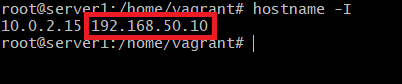
Now let’s navigate our browser’s URL to run http://[IP Address]. In my case it’s http://192.168.50.10:
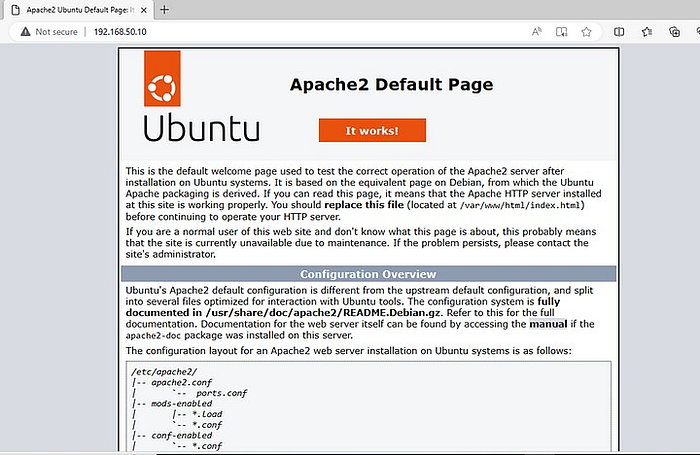
Step 1.2 — Configuring Apache to host Zabbix:
Opens the zabbix.conf file for editing using the nano text editor:
sudo nano /etc/apache2/sites-available/zabbix.confPlace the following code in the zabbix.conf file:
<VirtualHost *:80>
    ServerAdmin webmaster@localhost
    ServerName zabbix
    ServerAlias www.zabbix-server.com
    DocumentRoot /var/www/zabbix
    ErrorLog ${APACHE_LOG_DIR}/error.log
    CustomLog ${APACHE_LOG_DIR}/access.log combined
</VirtualHost>
Enable the zabbix.conf site configuration file within Apache, allowing it to be served by the web server:
sudo a2ensite zabbix.confDisable the default site configuration file (000-default.conf). This command stops Apache from serving the default page if no other sites are enabled:
sudo a2dissite 000-default.confCheck the Apache configuration files for syntax errors or potential issues. This command is used to validate the configuration before applying changes:
sudo apache2ctl configtestRestart the Apache web server, applying any configuration changes made. This ensures that the new settings take effect without requiring a full system reboot.
sudo systemctl restart apache2
Step 2 — Installing and Setting Up MySQL
Step 2.1 — Installing MySQL
Update the local database of available packages from the software repositories:
sudo apt updateInstall the MySQL server:
sudo apt install mysql-server -yStart the MySQL service, allowing it to run:
sudo systemctl start mysql.serviceEnable the MySQL service to start automatically on system boot, ensuring it starts up with the system:
sudo systemctl enable mysql.serviceInitiate the MySQL command-line interface (CLI):
mysql -u root -p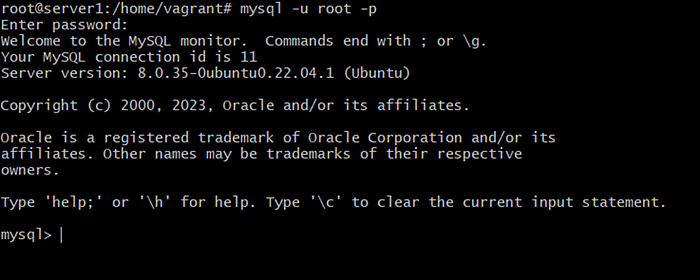
Note: If you have not set up any root password, then just press Enter to continue.
Step 2.2 — Configuring MySQL Database:
Run the following MySQL commands to create a database, user, and password, granting the user all privileges on the ‘zabbix’ database. Additionally, allow non-superusers to create functions, enabling specific functionalities:
create database zabbix character set utf8mb4 collate utf8mb4_bin;
create user zabbix@localhost identified by 'password';
grant all privileges on zabbix.* to zabbix@localhost;
set global log_bin_trust_function_creators = 1;
quit;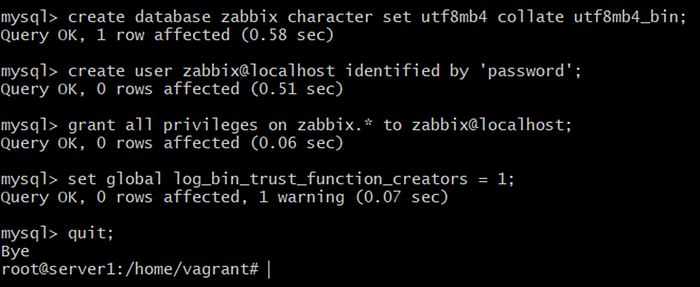
Step 3 — Installing and Configuring Zabbix 6.0:
Step 3.1 — Install Zabbix repository:
Download repository package from the Zabbix official repository:
wget https://repo.zabbix.com/zabbix/6.0/ubuntu/pool/main/z/zabbix-release/zabbix-release_6.0-4+ubuntu22.04_all.debInstall the Zabbix repository package:
sudo dpkg -i zabbix-release_6.0-4+ubuntu22.04_all.debUpdate packages:
sudo apt updateInstall Zabbix server, frontend, agent:
sudo apt install zabbix-server-mysql zabbix-frontend-php zabbix-apache-conf zabbix-sql-scripts zabbix-agent -yStep 3.2 — Setting up Zabbix:
On Zabbix server host import initial schema and data. You will be prompted to enter your newly created password (‘password’):
sudo zcat /usr/share/zabbix-sql-scripts/mysql/server.sql.gz | mysql --default-character-set=utf8mb4 -uzabbix -p zabbix
Note: After entering your newly created password, the terminal will not show any result for 4 to 5 minutes, so wait patiently.
Disable log_bin_trust_function_creators option after importing database schema:sudo mysql -uroot -p
set global log_bin_trust_function_creators = 0;
quit;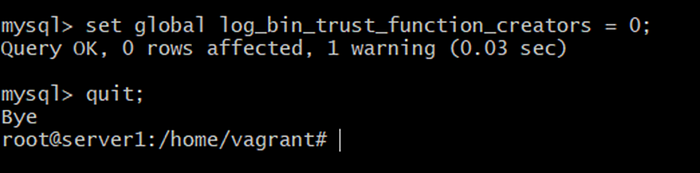
Add the password that you have setup in zabbix_server.conf file:
sudo nano /etc/zabbix/zabbix_server.confDBPassword=password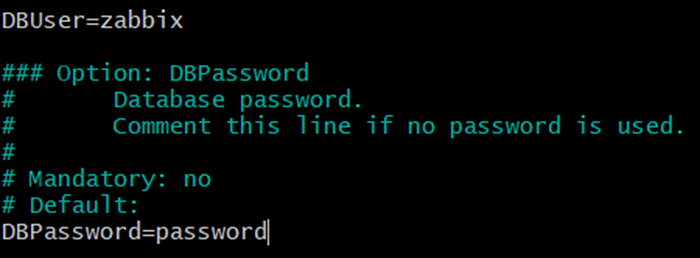
Restart the zabbix-server, zabbix-agent, and apache2 services:
systemctl restart zabbix-server zabbix-agent apache2Enable zabbix-server, zabbix-agent, and apache2 services to start automatically on system boot : systemctl enable zabbix-server zabbix-agent apache2Step 4—Mapping IP address to a hostname:
Step 4 .1— For Windows:
Navigate to CMD and run as administrator. In the terminal run:
notepad C:\Windows\System32\drivers\etc\hostsAt the bottom of the notepad file, type:
[IP Address] www.zabbix.com zabbix.com
So, for me it’s
192.168.50.10 www.zabbix-server.com zabbix-server.comSave the file and exit.
Step 4.2—For Linux:
In the terminal run:
sudo nano /etc/hostsAt the bottom of the notepad file, type:
[IP Address] www.zabbix.com zabbix.com
So, for me it’s:
192.168.50.10 www.zabbix-server.com zabbix-server.comSave the file and exit.
Step 4.3 — For Mac:
In the terminal run:
sudo nano /private/etc/hostsat the bottom of the notepad file, type:
[IP Address] www.zabbix.com zabbix.com
So, for me it’s:
192.168.50.10 www.zabbix-server.com zabbix-server.comSave the file and exit.
Step 5 — Configuring Zabbix Using the Web Interface:
In the browser’s URL, run http://zabbix-server.com/zabbix/setup.php.
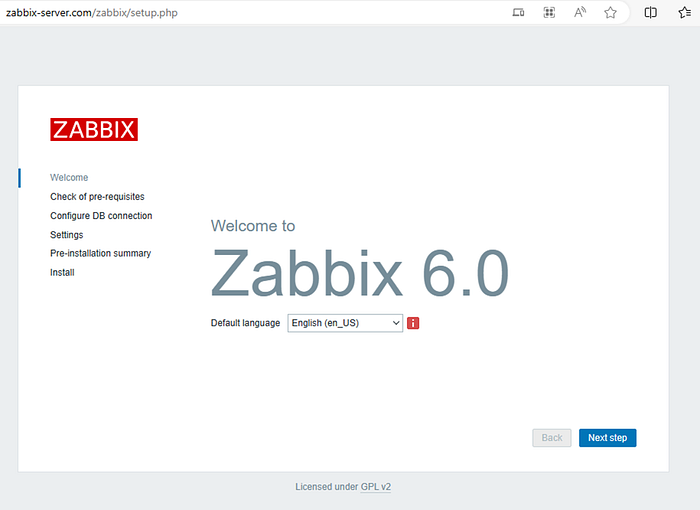
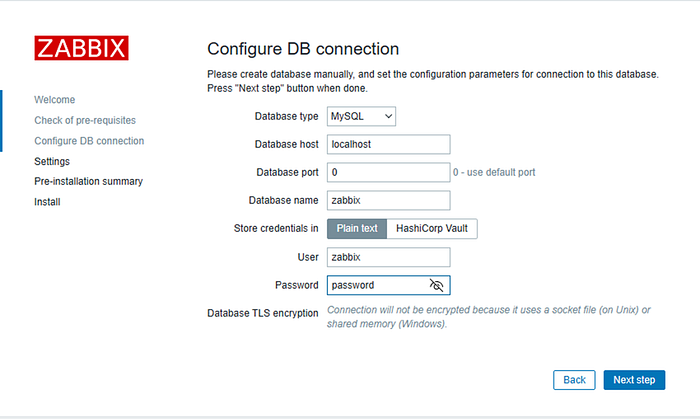
Click “Next step,” and in “Configure DB connection,” verify all the current values are as required:
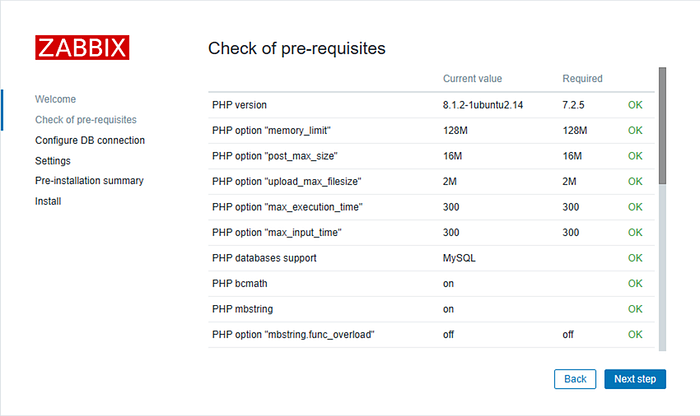
Note: If the current values are not up to the required values, then you can change that from /etc/php/8.1/apache2/php.ini
Click “Next step” and type the password you set up in your MySQL database:
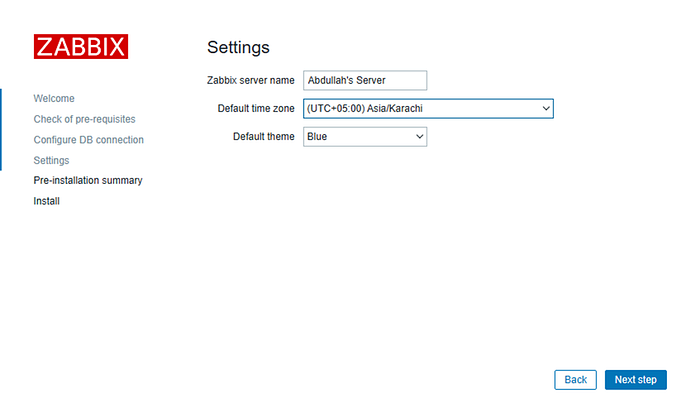
Set your preferred Zabbix server name and time zone, then click Next step.
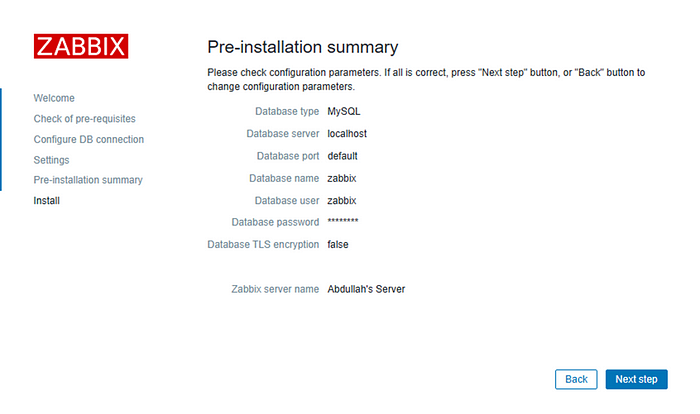
Check the pre-installed summary and then click Next step:
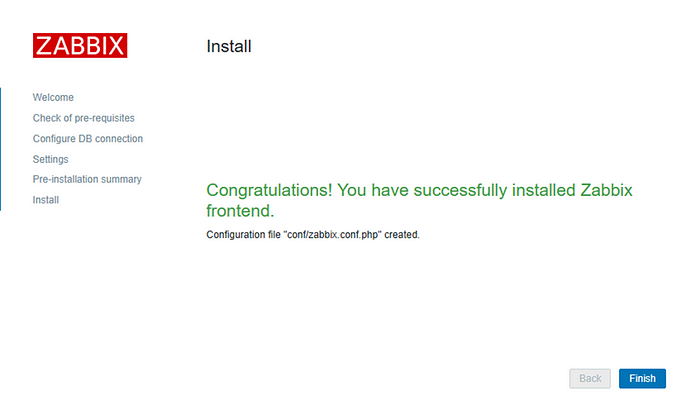
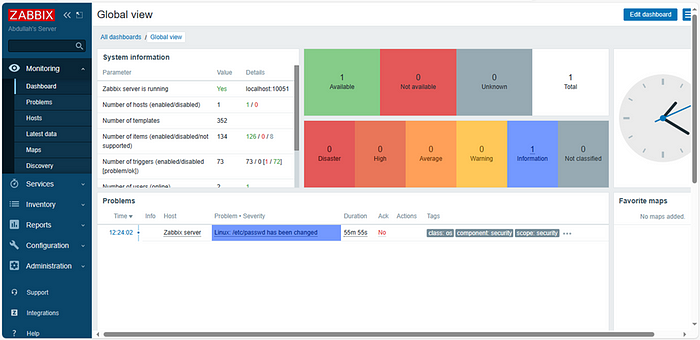
Congrats! You have successfully installed and configured Zabbix frontend:
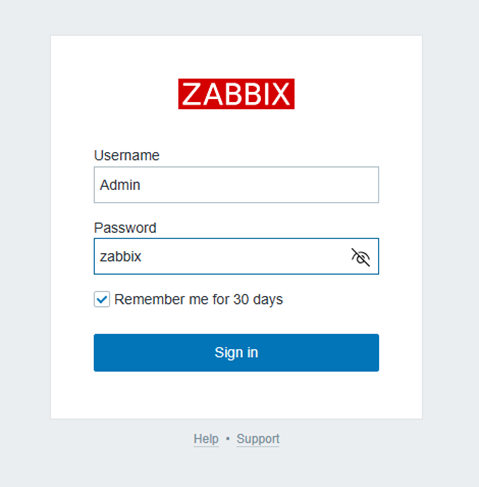
Enter the login credentials as follows:
And we’re done!
Conclusion
Thank you very much for reading this blog.
You can follow me on LinkedIn.
Stay tuned to blogs.ddevops.com for more deep dives into Infrastructure as Code, CI/CD,
automation, and Silo-Free Engineering
Reference Link:
Reference Blog for you:
How to Install and Configure Zabbix 6.0: Complete Guide
The Evolution of DevOps: Development and Operations
Introduction to CI/CD Pipelines
Written By Hamna Siddiqui